Azure OpenAI Batch API in .NET: Process Thousands of Prompts at Half the Price
Use the Azure OpenAI Global Batch deployment from .NET: build a JSONL file, upload it, create a batch, poll for completion and join results by custom_id.
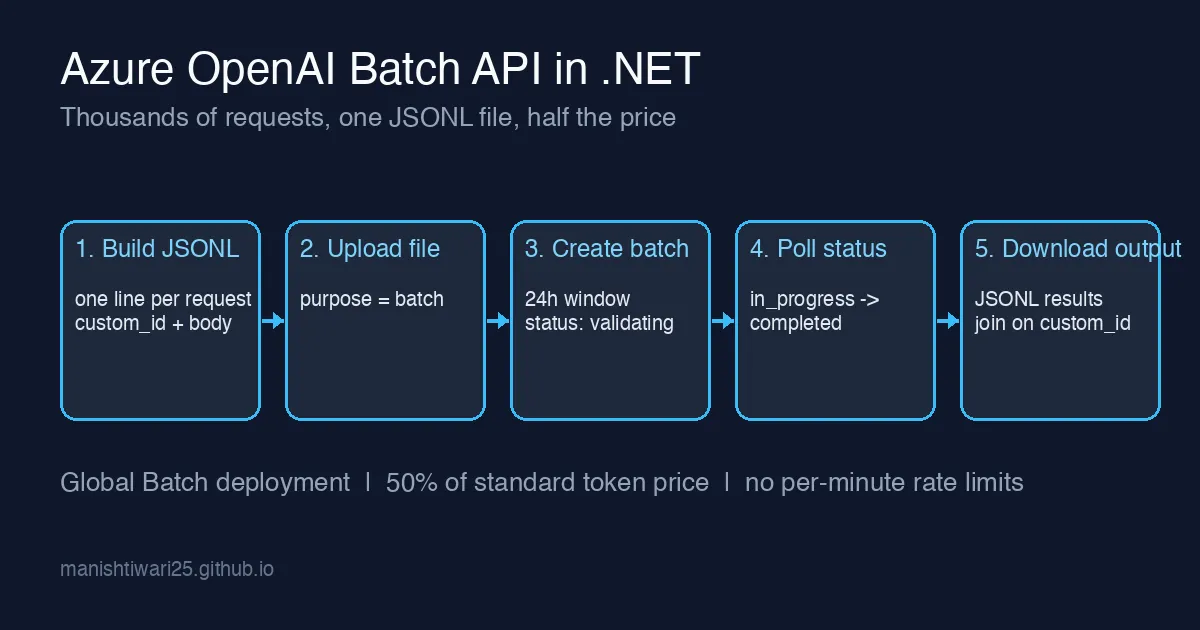
If you are classifying 50,000 support tickets, summarising a backlog of documents, or generating product descriptions overnight, you do not need an answer in two seconds. You need all of them done by morning without hitting 429 Too Many Requests every few minutes. That is what the Azure OpenAI Batch API is for: you hand it one file with every request, it works through them within a 24-hour window, and you pay 50% of the standard token price.
This post shows the whole loop from .NET: building the JSONL input, uploading it, creating the batch, polling, and reading the results back. It also covers the parts that surprise people the first time: the deployment type, the custom_id field, and what a partially failed batch looks like.
When batch is the right tool
Batch trades latency for throughput and price. Use it when:
- The work is offline: nightly jobs, backfills, evaluations, bulk enrichment.
- You have hundreds to millions of similar prompts.
- You keep hitting rate limits with the normal endpoint and retries are eating your wall-clock time.
Do not use it for anything a user is waiting on. A batch is allowed to take up to 24 hours, and while most finish far sooner, nothing guarantees it.
Step 0: a Global Batch deployment
The Batch API only works against a deployment whose type is Global-Batch. A regular Standard or GlobalStandard deployment will reject the batch with a model_not_found style error, which is confusing because the model name is correct. In Azure AI Foundry, create a new deployment of gpt-4o-mini (or another supported model) and pick Global-Batch as the deployment type. Note the deployment name; that is what goes into every line of the input file.
Also enable the Batch token quota for that model in the quota blade. Batch has its own enqueued-token limit separate from the per-minute limits of your online deployments.
Step 1: build the JSONL input
The input is one JSON object per line. Each line is a full chat completions request plus a custom_id you choose. The response file is not guaranteed to be in the same order as the input, so custom_id is how you join results back to your own records.
1
2
3
4
5
6
7
8
9
10
11
12
13
14
15
16
17
18
19
20
21
22
23
24
25
26
27
28
using System.Text.Json;

record Ticket(int Id, string Text);

static async Task WriteBatchFileAsync(IEnumerable<Ticket> tickets, string path, string deployment)
{
    await using var writer = new StreamWriter(path);
    foreach (var t in tickets)
    {
        var line = new
        {
            custom_id = $"ticket-{t.Id}",
            method = "POST",
            url = "/chat/completions",
            body = new
            {
                model = deployment,
                messages = new object[]
                {
                    new { role = "system", content = "Classify the support ticket as Billing, Bug, Feature or Other. Reply with one word." },
                    new { role = "user", content = t.Text }
                },
                max_tokens = 5
            }
        };
        await writer.WriteLineAsync(JsonSerializer.Serialize(line));
    }
}
Two things to keep in mind:
modelis the deployment name, notgpt-4o-mini.- A single file can hold up to 100,000 lines and 200 MB. Split larger jobs into several batches.
Step 2 and 3: upload the file and create the batch
The Azure.AI.OpenAI SDK exposes the OpenAI file and batch clients. Install it together with Azure.Identity:
1
2
dotnet add package Azure.AI.OpenAI
dotnet add package Azure.Identity
Then upload the file with purpose batch and create the batch pointing at it:
1
2
3
4
5
6
7
8
9
10
11
12
13
14
15
16
17
18
19
20
21
22
23
24
25
26
27
28
29
30
using Azure.AI.OpenAI;
using Azure.Identity;
using OpenAI.Files;
using OpenAI.Batch;
using System.ClientModel;

var endpoint = new Uri(Environment.GetEnvironmentVariable("AZURE_OPENAI_ENDPOINT")!);
var client = new AzureOpenAIClient(endpoint, new DefaultAzureCredential());

var files = client.GetOpenAIFileClient();
var batches = client.GetBatchClient();

await WriteBatchFileAsync(tickets, "input.jsonl", "gpt-4o-mini-batch");

OpenAIFile inputFile = await files.UploadFileAsync(
    BinaryData.FromBytes(await File.ReadAllBytesAsync("input.jsonl")),
    "input.jsonl",
    FileUploadPurpose.Batch);

var createBody = BinaryContent.Create(BinaryData.FromObjectAsJson(new
{
    input_file_id = inputFile.Id,
    endpoint = "/chat/completions",
    completion_window = "24h"
}));

ClientResult createResult = await batches.CreateBatchAsync(createBody, waitUntilCompleted: false);
using var created = JsonDocument.Parse(createResult.GetRawResponse().Content);
string batchId = created.RootElement.GetProperty("id").GetString()!;
Console.WriteLine($"Batch {batchId} created, status {created.RootElement.GetProperty("status")}");
The batch starts in validating. If any line of the file is malformed, the batch moves to failed within a few minutes and the errors property tells you which line and why. Fix the file and resubmit; nothing is charged for a failed validation.
Step 4: poll for completion
Statuses move through validating → in_progress → finalizing → completed. There is no webhook, so poll. Every minute or two is plenty; the point of batch is that you are not in a hurry.
1
2
3
4
5
6
7
8
9
10
11
12
13
14
15
16
17
static async Task<JsonElement> WaitForBatchAsync(BatchClient batches, string batchId, CancellationToken ct)
{
    while (true)
    {
        ClientResult result = await batches.GetBatchAsync(batchId, options: null);
        using var doc = JsonDocument.Parse(result.GetRawResponse().Content);
        var root = doc.RootElement.Clone();
        string status = root.GetProperty("status").GetString()!;
        var counts = root.GetProperty("request_counts");
        Console.WriteLine($"{status}: {counts.GetProperty("completed")}/{counts.GetProperty("total")} done, {counts.GetProperty("failed")} failed");

        if (status is "completed" or "failed" or "expired" or "cancelled")
            return root;

        await Task.Delay(TimeSpan.FromMinutes(1), ct);
    }
}
expired means the 24-hour window passed before everything was processed. Requests that did complete are still in the output file and are still billed, so always read the output even for an expired batch and resubmit only the missing custom_ids.
Step 5: download and join the results
A completed batch has an output_file_id and, when some lines failed, an error_file_id. Both are JSONL keyed by custom_id.
1
2
3
4
5
6
7
8
9
10
11
12
13
14
15
16
17
18
19
var batch = await WaitForBatchAsync(batches, batchId, CancellationToken.None);

string outputFileId = batch.GetProperty("output_file_id").GetString()!;
BinaryData output = await files.DownloadFileAsync(outputFileId);

var labels = new Dictionary<int, string>();
foreach (var line in output.ToString().Split('\n', StringSplitOptions.RemoveEmptyEntries))
{
    using var doc = JsonDocument.Parse(line);
    var root = doc.RootElement;
    int id = int.Parse(root.GetProperty("custom_id").GetString()!["ticket-".Length..]);

    if (root.GetProperty("response").GetProperty("status_code").GetInt32() != 200)
        continue; // look in the error file for this custom_id

    string label = root.GetProperty("response").GetProperty("body")
        .GetProperty("choices")[0].GetProperty("message").GetProperty("content").GetString()!.Trim();
    labels[id] = label;
}
Each output line carries the full chat completions response under response.body, including usage, so you can total the tokens and verify the bill matches what you expected at the batch rate.
Mistakes that cost a night
- Wrong deployment type. The batch validates, then every line fails with a deployment error. Check that the deployment is Global-Batch before writing any code.
- Reusing
custom_ids. They must be unique within a file. Duplicates fail validation for the whole batch. - Assuming output order. Always join on
custom_id; never zip the output with your input list. - Forgetting the error file. A
completedbatch can still have hundreds of failed lines (content filter, bad JSON in one prompt). Checkrequest_counts.failedand downloaderror_file_idwhen it is non-zero. - Treating
expiredas total failure. Partial results are there and already paid for; only resubmit what is missing. - Ignoring enqueued-token quota. If you submit more tokens than your batch quota allows, the create call fails immediately. Split the file or request more quota.
Wrapping up
The Batch API turns a rate-limit fight into a file upload: write JSONL with a custom_id per request, upload it, create the batch against a Global-Batch deployment, poll, and join the output back by custom_id. For offline work it halves the cost and removes retry logic entirely. For anything interactive, stay with the normal endpoint and the retry pattern from my earlier 429 rate-limit post.