Before and After: A Screenshot Walkthrough of the Lamplit Labs Token Counter, Schema Builder and Validator
Five real screenshots of tools.lamplitlabs.com: each tool empty, then after one concrete input, so you can see exactly what changes on screen.
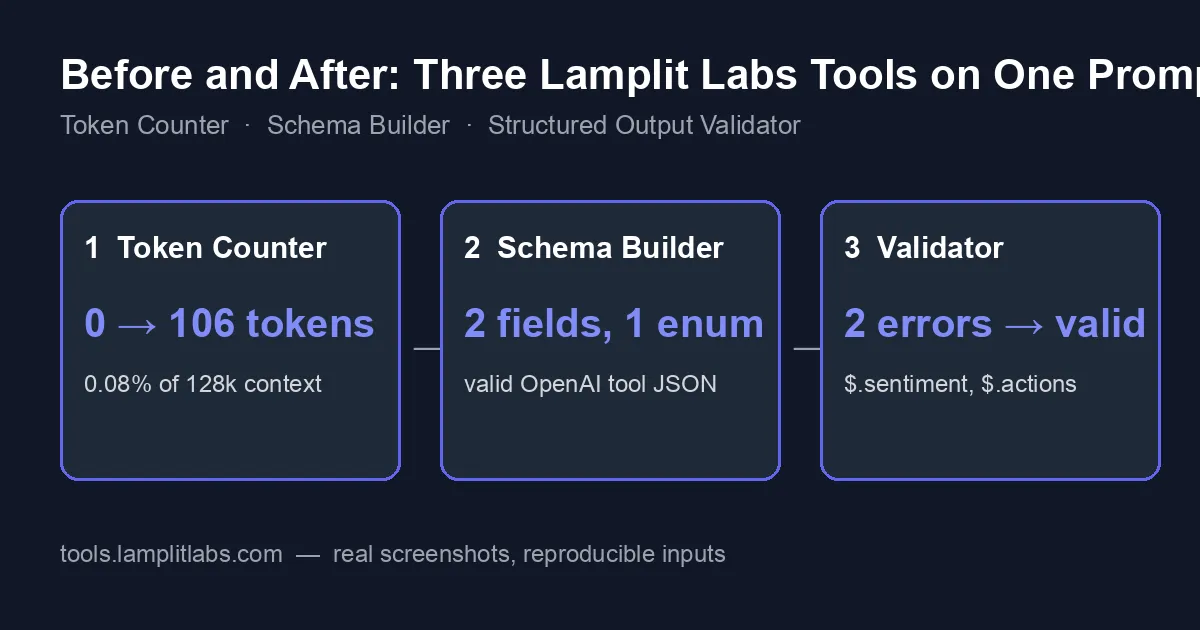
The earlier workflow post showed the three Lamplit Labs tools chained on one support-ticket task. Readers asked a simpler question afterwards: what does the screen look like before I type anything, and what exactly changes after? This post answers that with before-and-after screenshots of each tool, taken on tools.lamplitlabs.com at 1280 px width with the inputs printed in full, so you can paste the same text and get the same screen.
The example used throughout
A small extraction prompt for an e-commerce support inbox. The model has to pull an order id, a sentiment and a list of requested actions out of a free-text message and reply with JSON only:
1
2
3
4
5
6
7
You are a support assistant for an e-commerce store. Extract the order_id, the customer's
sentiment (positive, neutral or negative), and a list of requested actions from the message
below. Reply only with JSON.

Message: "Hi, my order #A-48213 arrived two days late and the box was damaged. I want a
refund for the shipping fee and a replacement for the cracked mug. Otherwise the service
was fine."
Token Counter
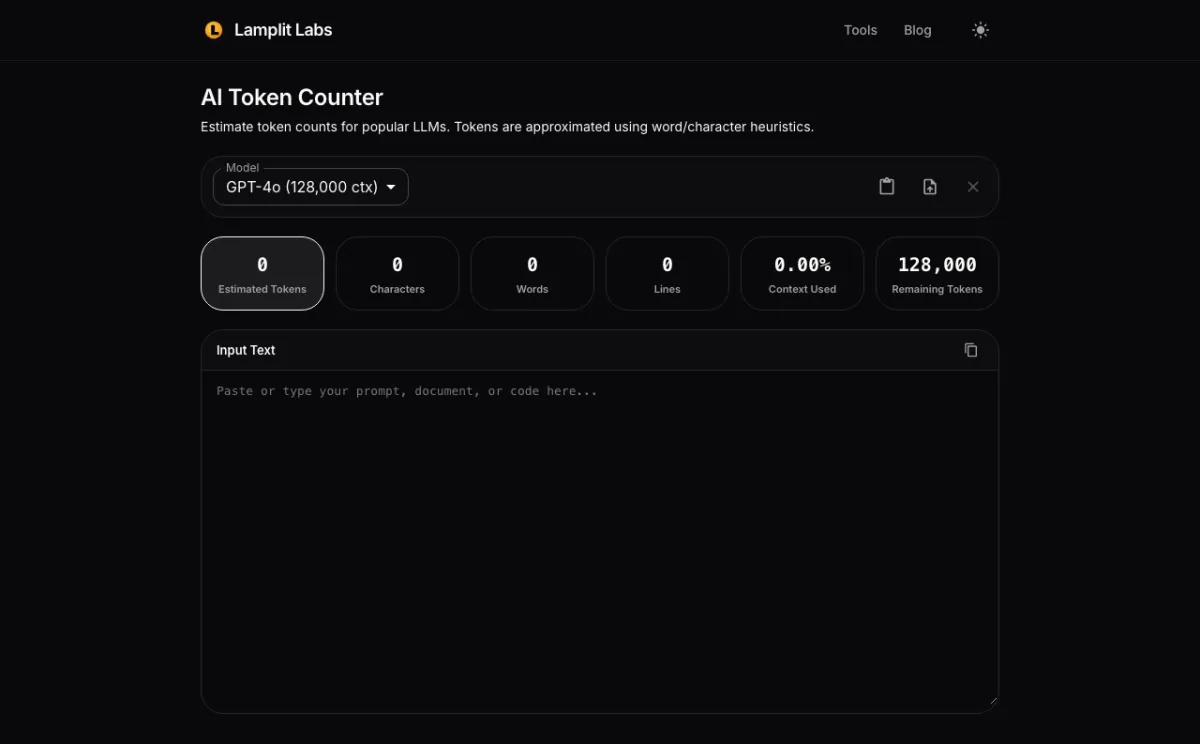
Before. The Token Counter (/token-counter on the tools site) opens with GPT-4o (128,000 context) preselected, an empty input box and every counter at zero. The context-window bar below the counters is empty.
After. Pasting the prompt above updates the counters as you type, with no button to press: 106 estimated tokens, 399 characters, 67 words, 3 lines, 0.08 % of the context used, 127,894 tokens remaining. The bar under the counters moves by a sliver.
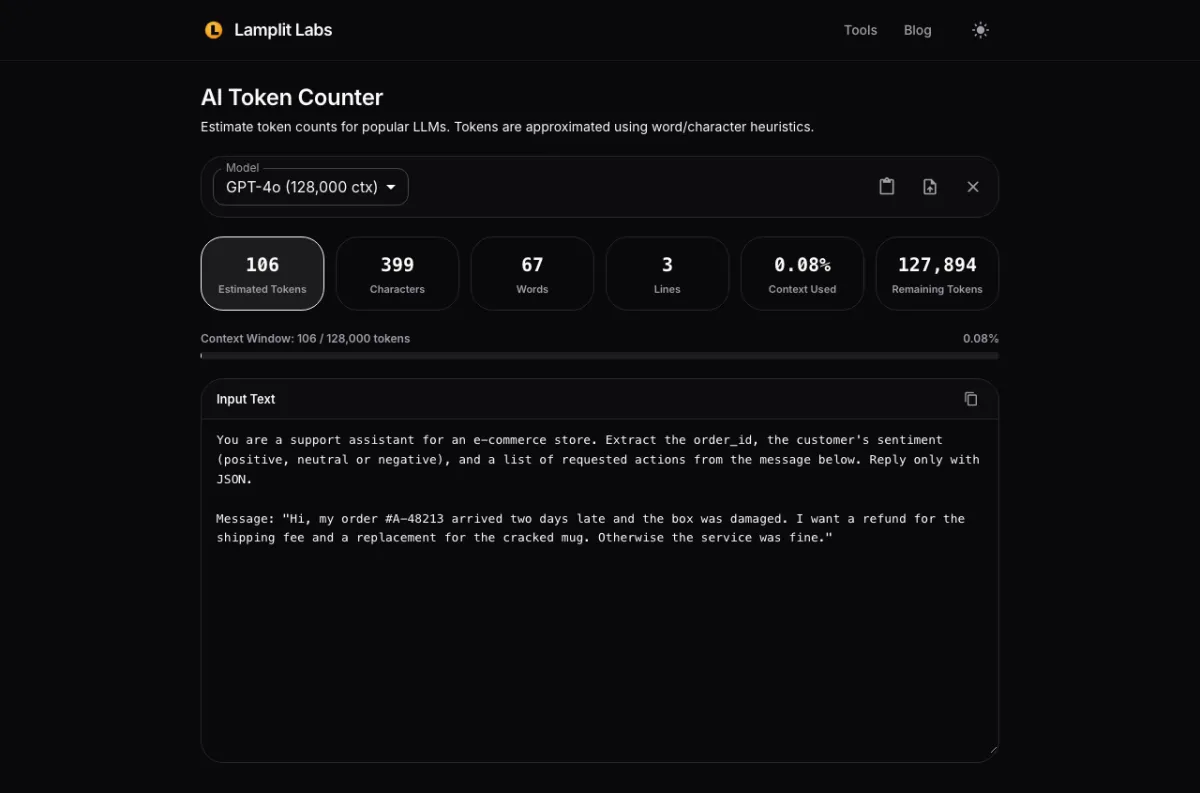
What to take from the pair: the instruction itself is cheap. The cost of this task in production will come from the volume of messages, not the prompt, which is the argument for keeping the output tightly structured so the reply is short too. The counter is an estimate from word and character heuristics, as the page says; use it to compare drafts and catch surprises, not to invoice.
Function Call Schema Builder
Before. The Schema Builder (/function-schema) loads with a worked example already filled in: a get_weather function with location and unit parameters, and the generated OpenAI tool JSON in the right-hand pane. That example is the quickest way to learn the form, so the before state is worth a look rather than clearing straight away.
After. Replacing the example with our task gives function name triage_support_message, a one-line description, and two parameters: order_id (string, required, “Order identifier, e.g. A-48213”) and sentiment (string, required, with the enum positive, neutral, negative typed as a comma-separated list). The right-hand pane rewrites itself on every keystroke, so the enum appears in the JSON the moment the comma list is entered.
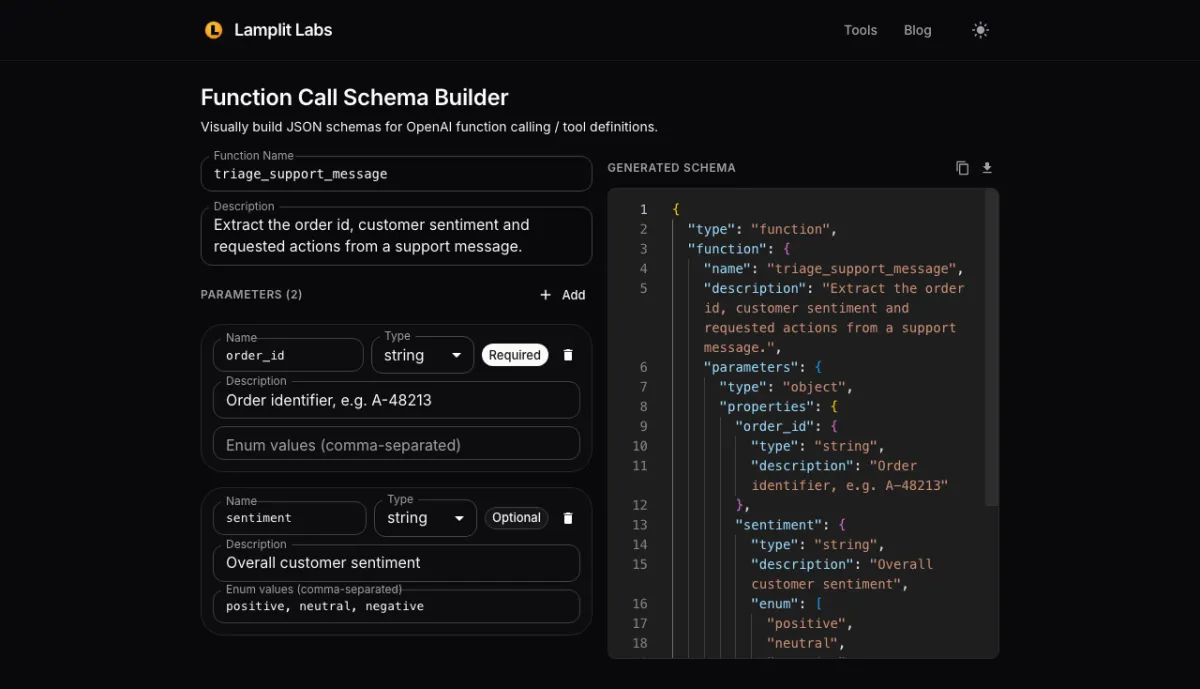
The generated parameters block is what the next step needs. Copy it from the right-hand pane; adding an actions array by hand is a two-line edit, and the full schema used below is printed in the next section so nothing depends on the clipboard.
Structured Output Validator
Before. The Validator (/structured-output) has two panes, JSON Schema on the left and JSON Output on the right, both with placeholder text, plus a “Generate Sample Output” button that produces a conforming example from whatever schema is pasted. The schema used here:
1
2
3
4
5
6
7
8
9
10
{
  "type": "object",
  "properties": {
    "order_id": { "type": "string" },
    "sentiment": { "type": "string", "enum": ["positive", "neutral", "negative"] },
    "actions": { "type": "array", "items": { "type": "string" } }
  },
  "required": ["order_id", "sentiment", "actions"],
  "additionalProperties": false
}
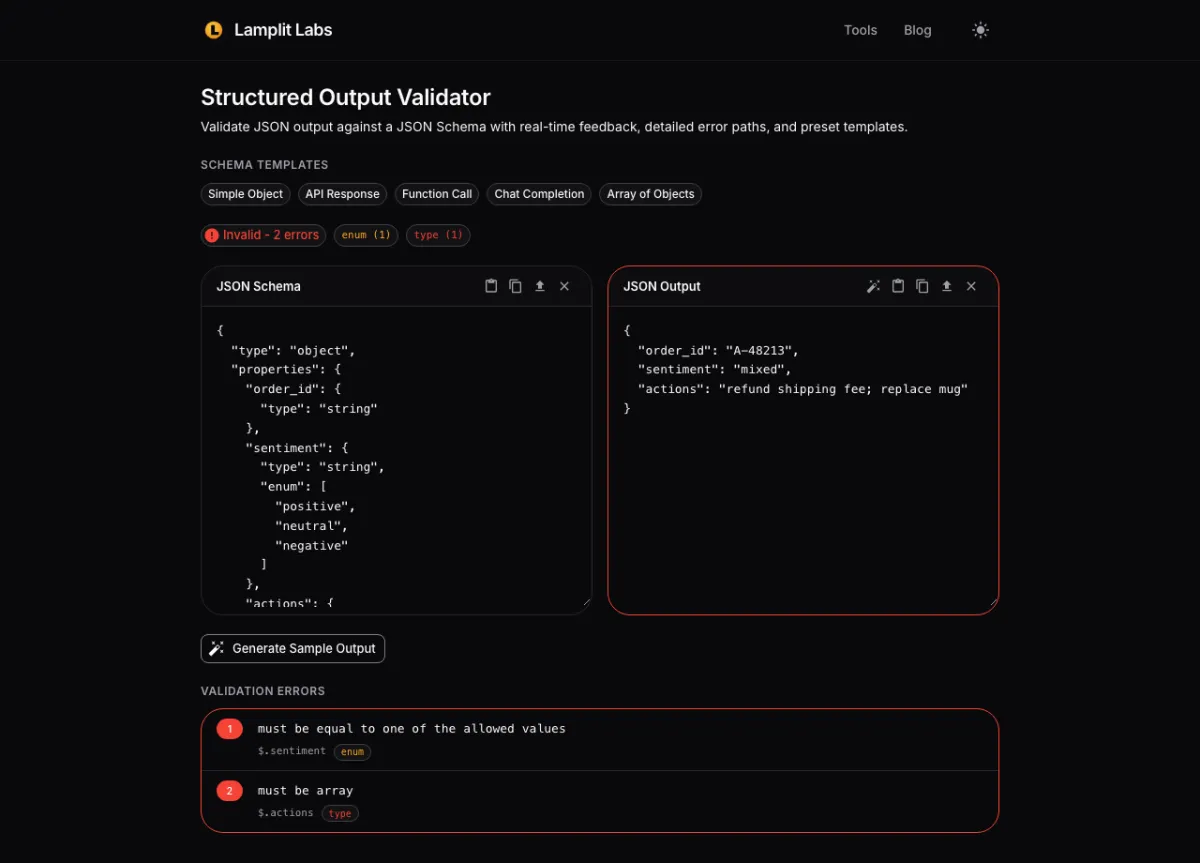
After, with a bad reply. This is the kind of answer a model gives when the prompt says “positive, neutral or negative” but the customer’s message is genuinely mixed, and when “a list of actions” is read loosely:
1
2
3
4
5
{
  "order_id": "A-48213",
  "sentiment": "mixed",
  "actions": "refund shipping fee; replace mug"
}
The validator flags it immediately as Invalid, 2 errors: $.sentiment is not one of the allowed enum values, and $.actions is a string where the schema requires an array. Both are shown in the Validation Errors list with the JSON path, so there is no guessing which field broke.
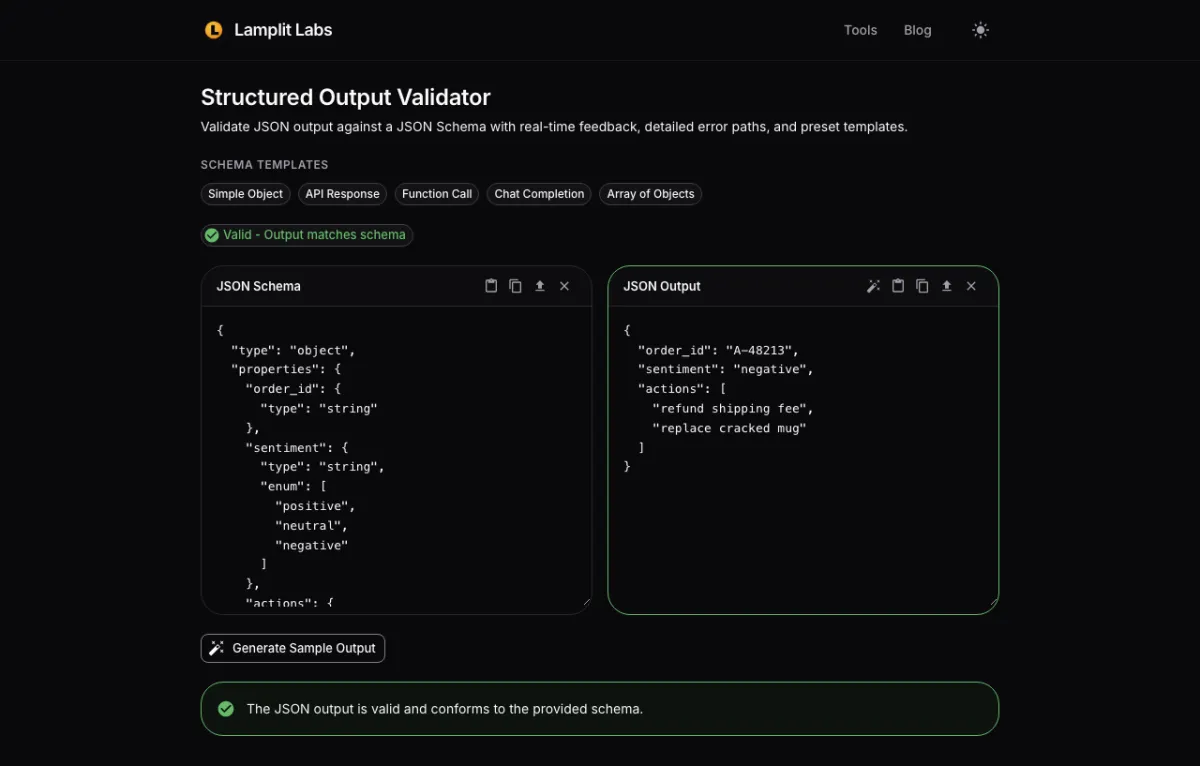
After, with a corrected reply. Changing sentiment to "negative" and turning actions into a two-element array flips the banner to green Valid with no errors listed. Nothing else on the page changes, which is the point: the diff between the two screenshots is exactly the two fields that were wrong.
What the before-and-after pairs show
- Token Counter: the prompt is 106 tokens, 0.08 % of GPT-4o’s window. Prompt size is not the budget problem for this task; message volume and reply length are.
- Schema Builder: typing an enum as a comma list is enough to get it into the JSON; you never edit the schema text by hand for the common cases.
- Validator: the two errors a loosely worded prompt invites, a value outside the enum and a string where an array was asked for, are both caught with a JSON path before any application code sees the reply.
The fix for both validator errors lives in the prompt and the schema, not in the parsing code: say “exactly one of positive, neutral, negative” and “actions as a JSON array of strings”, and pass the schema to the model’s structured-output mode where the provider supports it. Re-running the three tools after that change takes under a minute, which is the reason they sit next to each other on the site.
All three tools run in the browser; nothing you paste leaves the page.