Trimming a D365 F&O $metadata File Down to the Entities You Call: A Screenshot Walkthrough of EDMX Tools
Screenshots of edmx.lamplitlabs.com on a D365 F&O metadata file: upload, trim to three sales entities, explore one entity and convert to OpenAPI JSON.
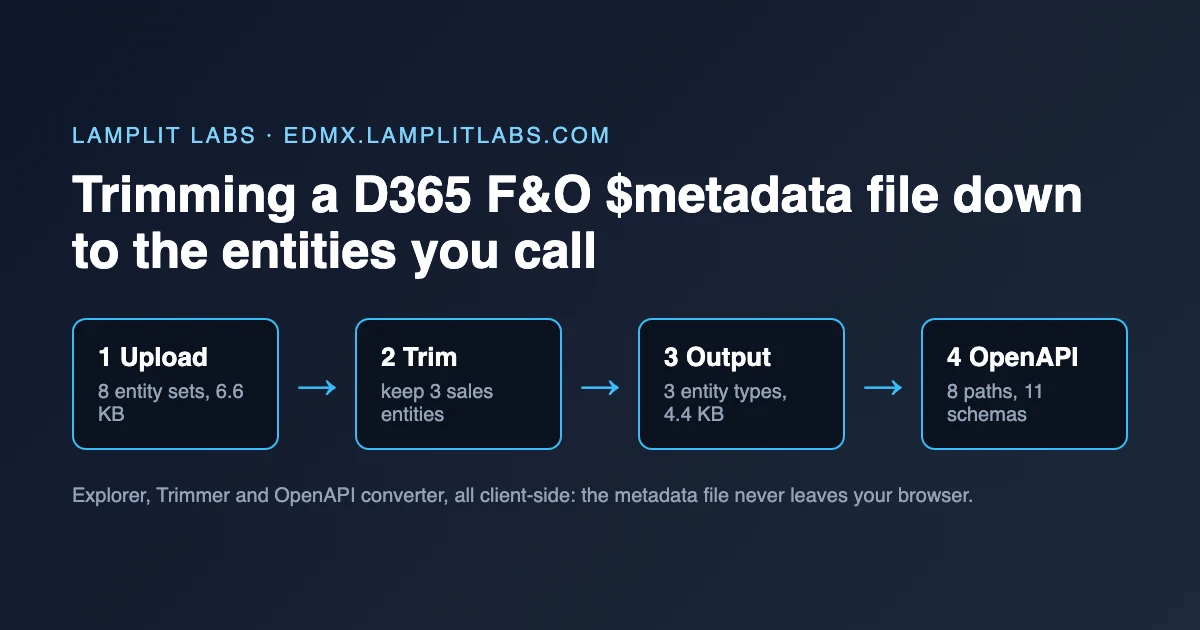
The 2023 post on the EDMX trimmer explained why you want a smaller Dynamics 365 Finance & Operations $metadata document: the full file is tens of megabytes, and feeding it to OData Connected Service or any .NET client generator produces thousands of classes you never call. What that post did not show is what the tool looks like while you use it. This post walks through edmx.lamplitlabs.com on one small D365-shaped file, screen by screen, at 1280 px width, with the input printed in full so you can repeat every step and get the same screen.
Everything runs in the browser. The file is parsed client-side and never uploaded to a server, which matters when the metadata describes a production ERP.
The file used throughout
A real D365 F&O $metadata is too large to print, so the walkthrough uses an 8-entity-set excerpt in the same shape: the Microsoft.Dynamics.DataEntities namespace, composite keys on dataAreaId, enum-typed properties and navigation properties from header to lines. Save it as d365-sample.edmx (6.6 KB):
1
2
3
4
5
6
7
8
9
10
11
12
13
14
15
16
17
18
19
20
21
22
23
24
25
26
27
28
29
30
31
32
33
34
35
36
37
38
39
40
41
42
43
44
45
46
47
48
49
50
51
52
53
54
55
56
57
58
59
60
61
62
63
64
65
66
67
68
69
70
71
72
73
74
75
76
77
78
79
80
81
82
83
84
85
86
87
88
89
90
91
92
93
94
95
96
97
<?xml version="1.0" encoding="utf-8"?>
<edmx:Edmx Version="4.0" xmlns:edmx="http://docs.oasis-open.org/odata/ns/edmx">
  <edmx:DataServices>
    <Schema Namespace="Microsoft.Dynamics.DataEntities" xmlns="http://docs.oasis-open.org/odata/ns/edm">
      <EnumType Name="NoYes"><Member Name="No" Value="0"/><Member Name="Yes" Value="1"/></EnumType>
      <EnumType Name="SalesStatus"><Member Name="None" Value="0"/><Member Name="Backorder" Value="1"/><Member Name="Delivered" Value="2"/><Member Name="Invoiced" Value="3"/><Member Name="Canceled" Value="4"/></EnumType>
      <EnumType Name="VendAccountStatus"><Member Name="Active" Value="0"/><Member Name="OnHold" Value="1"/></EnumType>
      <EntityType Name="CustomerV3">
        <Key><PropertyRef Name="dataAreaId"/><PropertyRef Name="CustomerAccount"/></Key>
        <Property Name="dataAreaId" Type="Edm.String" Nullable="false"/>
        <Property Name="CustomerAccount" Type="Edm.String" Nullable="false"/>
        <Property Name="OrganizationName" Type="Edm.String"/>
        <Property Name="CustomerGroupId" Type="Edm.String"/>
        <Property Name="SalesCurrencyCode" Type="Edm.String"/>
        <Property Name="CreditLimit" Type="Edm.Decimal"/>
        <Property Name="OnHoldStatus" Type="Microsoft.Dynamics.DataEntities.NoYes"/>
        <Property Name="PrimaryContactEmail" Type="Edm.String"/>
        <Property Name="AddressCity" Type="Edm.String"/>
        <Property Name="AddressCountryRegionId" Type="Edm.String"/>
        <NavigationProperty Name="SalesOrderHeaders" Type="Collection(Microsoft.Dynamics.DataEntities.SalesOrderHeaderV2)"/>
      </EntityType>
      <EntityType Name="SalesOrderHeaderV2">
        <Key><PropertyRef Name="dataAreaId"/><PropertyRef Name="SalesOrderNumber"/></Key>
        <Property Name="dataAreaId" Type="Edm.String" Nullable="false"/>
        <Property Name="SalesOrderNumber" Type="Edm.String" Nullable="false"/>
        <Property Name="OrderingCustomerAccountNumber" Type="Edm.String"/>
        <Property Name="InvoiceCustomerAccountNumber" Type="Edm.String"/>
        <Property Name="SalesOrderStatus" Type="Microsoft.Dynamics.DataEntities.SalesStatus"/>
        <Property Name="RequestedShippingDate" Type="Edm.DateTimeOffset"/>
        <Property Name="CurrencyCode" Type="Edm.String"/>
        <Property Name="TotalDiscountAmount" Type="Edm.Decimal"/>
        <Property Name="DeliveryModeCode" Type="Edm.String"/>
        <NavigationProperty Name="SalesOrderLines" Type="Collection(Microsoft.Dynamics.DataEntities.SalesOrderLineV2)"/>
      </EntityType>
      <EntityType Name="SalesOrderLineV2">
        <Key><PropertyRef Name="dataAreaId"/><PropertyRef Name="SalesOrderNumber"/><PropertyRef Name="LineNumber"/></Key>
        <Property Name="dataAreaId" Type="Edm.String" Nullable="false"/>
        <Property Name="SalesOrderNumber" Type="Edm.String" Nullable="false"/>
        <Property Name="LineNumber" Type="Edm.Decimal" Nullable="false"/>
        <Property Name="ItemNumber" Type="Edm.String"/>
        <Property Name="OrderedSalesQuantity" Type="Edm.Decimal"/>
        <Property Name="SalesPrice" Type="Edm.Decimal"/>
        <Property Name="LineAmount" Type="Edm.Decimal"/>
        <Property Name="ShippingWarehouseId" Type="Edm.String"/>
      </EntityType>
      <EntityType Name="VendorV2">
        <Key><PropertyRef Name="dataAreaId"/><PropertyRef Name="VendorAccountNumber"/></Key>
        <Property Name="dataAreaId" Type="Edm.String" Nullable="false"/>
        <Property Name="VendorAccountNumber" Type="Edm.String" Nullable="false"/>
        <Property Name="VendorOrganizationName" Type="Edm.String"/>
        <Property Name="VendorGroupId" Type="Edm.String"/>
        <Property Name="AccountStatus" Type="Microsoft.Dynamics.DataEntities.VendAccountStatus"/>
        <Property Name="CurrencyCode" Type="Edm.String"/>
      </EntityType>
      <EntityType Name="ReleasedProductV2">
        <Key><PropertyRef Name="dataAreaId"/><PropertyRef Name="ItemNumber"/></Key>
        <Property Name="dataAreaId" Type="Edm.String" Nullable="false"/>
        <Property Name="ItemNumber" Type="Edm.String" Nullable="false"/>
        <Property Name="ProductName" Type="Edm.String"/>
        <Property Name="ItemModelGroupId" Type="Edm.String"/>
        <Property Name="SalesUnitSymbol" Type="Edm.String"/>
        <Property Name="IsPurchasePriceAutomaticallyUpdated" Type="Microsoft.Dynamics.DataEntities.NoYes"/>
      </EntityType>
      <EntityType Name="LedgerJournalHeader">
        <Key><PropertyRef Name="dataAreaId"/><PropertyRef Name="JournalBatchNumber"/></Key>
        <Property Name="dataAreaId" Type="Edm.String" Nullable="false"/>
        <Property Name="JournalBatchNumber" Type="Edm.String" Nullable="false"/>
        <Property Name="JournalName" Type="Edm.String"/>
        <Property Name="Description" Type="Edm.String"/>
        <Property Name="IsPosted" Type="Microsoft.Dynamics.DataEntities.NoYes"/>
      </EntityType>
      <EntityType Name="WarehouseV2">
        <Key><PropertyRef Name="dataAreaId"/><PropertyRef Name="WarehouseId"/></Key>
        <Property Name="dataAreaId" Type="Edm.String" Nullable="false"/>
        <Property Name="WarehouseId" Type="Edm.String" Nullable="false"/>
        <Property Name="WarehouseName" Type="Edm.String"/>
        <Property Name="OperationalSiteId" Type="Edm.String"/>
      </EntityType>
      <EntityType Name="LegalEntity">
        <Key><PropertyRef Name="LegalEntityId"/></Key>
        <Property Name="LegalEntityId" Type="Edm.String" Nullable="false"/>
        <Property Name="Name" Type="Edm.String"/>
        <Property Name="CountryRegionId" Type="Edm.String"/>
      </EntityType>
      <EntityContainer Name="DataEntities">
        <EntitySet Name="CustomersV3" EntityType="Microsoft.Dynamics.DataEntities.CustomerV3"/>
        <EntitySet Name="SalesOrderHeadersV2" EntityType="Microsoft.Dynamics.DataEntities.SalesOrderHeaderV2"/>
        <EntitySet Name="SalesOrderLinesV2" EntityType="Microsoft.Dynamics.DataEntities.SalesOrderLineV2"/>
        <EntitySet Name="VendorsV2" EntityType="Microsoft.Dynamics.DataEntities.VendorV2"/>
        <EntitySet Name="ReleasedProductsV2" EntityType="Microsoft.Dynamics.DataEntities.ReleasedProductV2"/>
        <EntitySet Name="LedgerJournalHeaders" EntityType="Microsoft.Dynamics.DataEntities.LedgerJournalHeader"/>
        <EntitySet Name="WarehousesV2" EntityType="Microsoft.Dynamics.DataEntities.WarehouseV2"/>
        <EntitySet Name="LegalEntities" EntityType="Microsoft.Dynamics.DataEntities.LegalEntity"/>
      </EntityContainer>
    </Schema>
  </edmx:DataServices>
</edmx:Edmx>
On a real environment you get the equivalent from https://<your-env>.operations.dynamics.com/data/$metadata with a bearer token, saved as .xml or .edmx; the tool accepts .edmx, .xml and .csdl up to 50 MB.
The task for the walkthrough: an integration that only reads customers and sales orders. Keep CustomersV3, SalesOrderHeadersV2 and SalesOrderLinesV2; drop the other five sets.
1. Trimmer, file uploaded
Open the Trim tab and drop the file on the upload area. The page confirms the file name, a toast reports "d365-sample.edmx" uploaded successfully (6 KB), and the Select Entities combobox becomes active with the eight entity sets from the EntityContainer listed in file order.
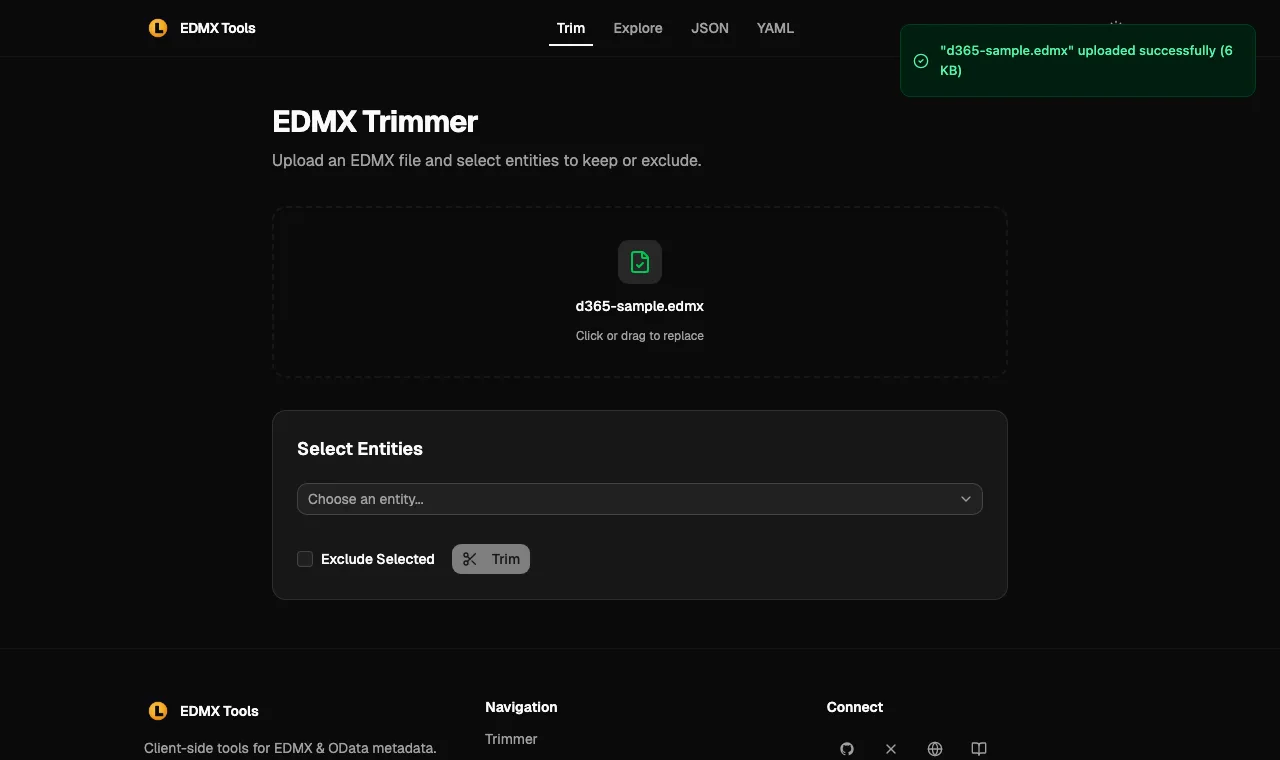 The trimmer right after upload. Nothing is selected yet; the combobox lists the entity sets, not the entity types.
Two things worth noting at this step. The list shows entity sets (CustomersV3), because that is what you address in a URL, while the trimmed output will keep the matching entity types (CustomerV3) and everything they reference. And the Exclude Selected checkbox flips the meaning of the selection: unchecked means “keep only these”, checked means “keep everything except these”. For an integration that calls three sets out of hundreds, “keep only” is the right mode.
2. Trimmer, three entities picked
Open the combobox three times and pick CustomersV3, SalesOrderHeadersV2 and SalesOrderLinesV2. Each pick is added as a row under the combobox, and the combobox stays available for more.
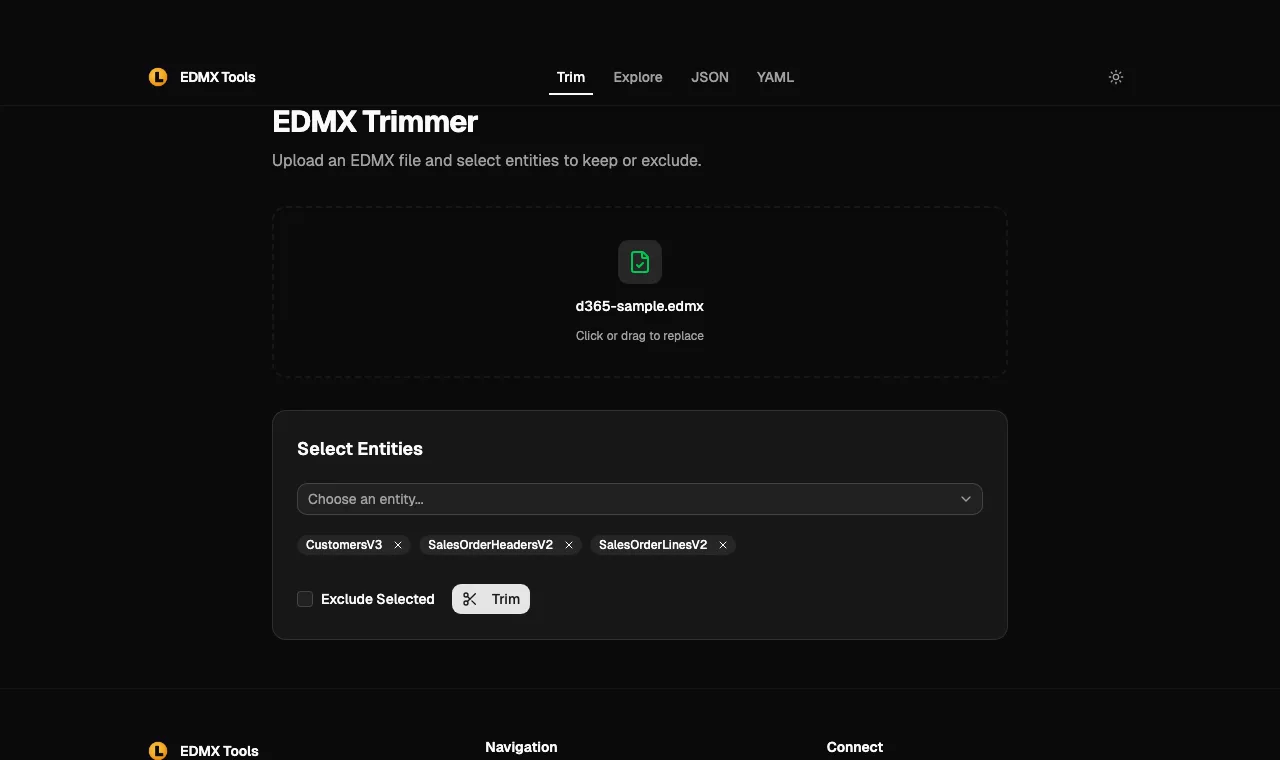 Three sets selected in keep mode. Order does not matter; the output keeps the schema’s original order.
3. Trimmer, after Trim
Click Trim. A toast says EDMX trimmed successfully! and a Download Trimmed File button appears next to Trim. The download is named trimmedMetadata.xml.
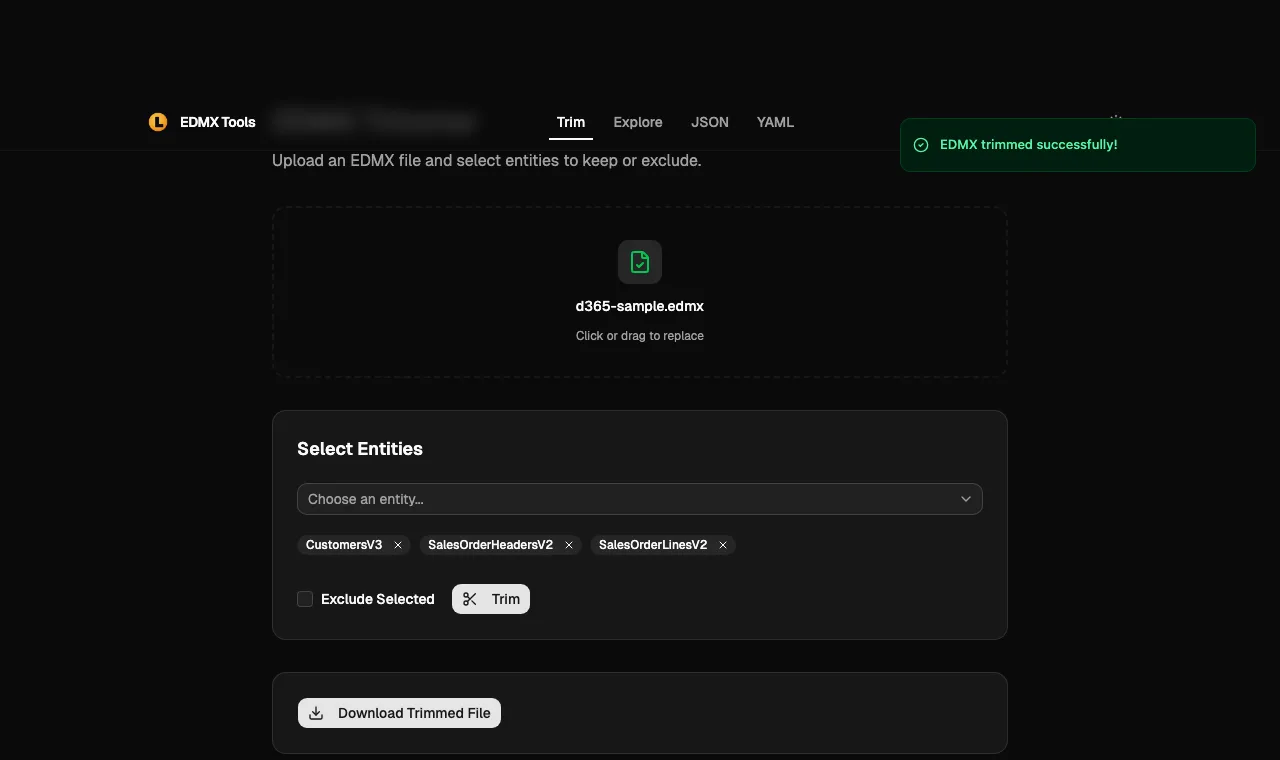 The result state. The page does not change otherwise; the trimmed file is behind the download button.
What came out, measured on the downloaded file:
| Input | Trimmed output | |
|---|---|---|
| Size | 6,607 bytes | 4,419 bytes |
EntityType | 8 | 3 (CustomerV3, SalesOrderHeaderV2, SalesOrderLineV2) |
EntitySet | 8 | 3 |
EnumType | 3 | 3 (all kept) |
NavigationProperty | 2 | 2 (SalesOrderHeaders, SalesOrderLines) |
The ratio is modest on a 6 KB sample because three of eight entities are large ones. On a full F&O file, where the three sets you need are a rounding error among roughly 2,000, the cut is proportionally far bigger, and the generated .NET client shrinks with it. One honest caveat visible in the numbers: the trimmer keeps all enum types, including VendAccountStatus, which only VendorV2 used. That is a safe choice (an enum referenced from a kept entity is never missing) but it means the enum section is not minimised. Navigation properties between kept entities survive, so $expand=SalesOrderLines still code-generates.
4. Explorer, one entity opened
Switch to the Explore tab and drop the same file (each tab holds its own upload). The combobox here lists EntityTypes and EnumTypes rather than sets. Pick SalesOrderHeaderV2.
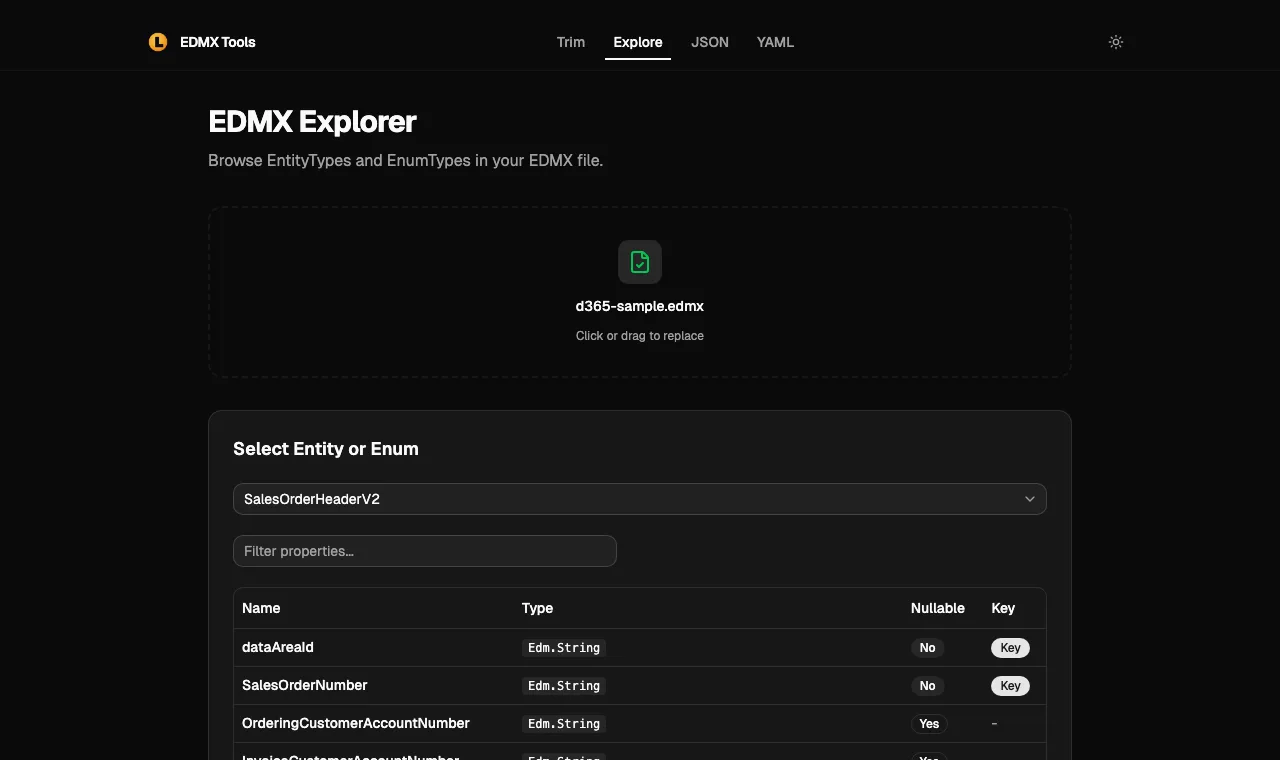 The Explorer answers the question you would otherwise grep for: which fields form the key, which are nullable, which are enums.
This is the view to open before writing a $filter. It shows in one table that the key is composite (dataAreaId + SalesOrderNumber), that SalesOrderStatus is typed as the SalesStatus enum (so the filter needs Microsoft.Dynamics.DataEntities.SalesStatus'Invoiced', not a string) and that RequestedShippingDate is Edm.DateTimeOffset. Pick an EnumType from the same combobox to see its members and values. The footer of the table counts what is shown (9 of 9 properties), and a property filter box narrows the list on the 200-column entities.
5. OpenAPI JSON, converted
The JSON tab converts the EDMX to an OpenAPI 3.0.3 document. Drop the file, click Convert to OpenAPI JSON, and the result renders in a code panel with a Download button (openapi.json).
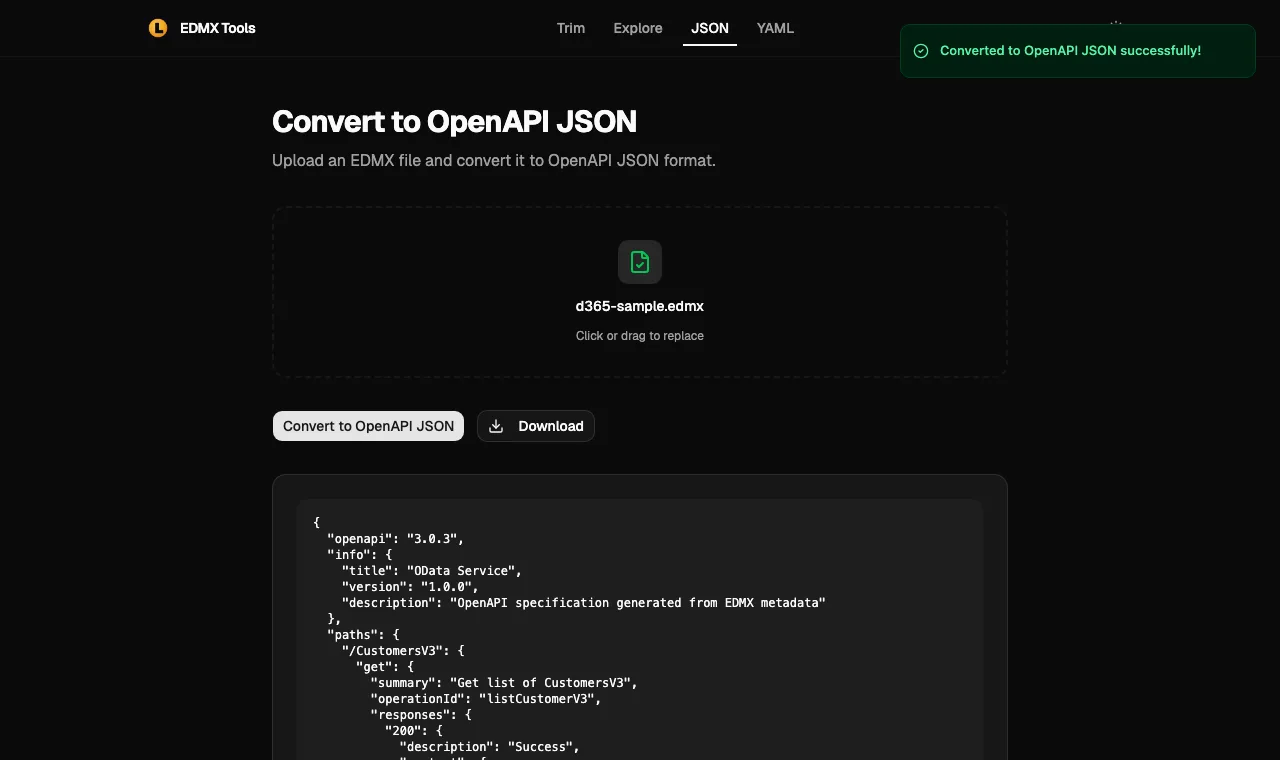 The OpenAPI output for the untrimmed file. Feed the trimmed file instead to get only the three sales paths.
Measured on the downloaded openapi.json (11,611 bytes): 8 paths, one per entity set, each with a single GET list operation; 11 component schemas, one per EntityType plus one per EnumType. The property mapping is what you would expect: Edm.Decimal becomes number/double, Edm.DateTimeOffset becomes string/date-time, the key properties land in required. Each EnumType becomes its own schema with the member names as enum values (SalesStatus lists None, Backorder, Delivered, Invoiced, Canceled), but the enum-typed properties on the entities are emitted as plain string rather than a $ref to that schema. The output is good for documentation, Postman collections and quick client stubs; if you need strict enum validation on properties, wire the $ref in yourself. The YAML tab produces the same document in YAML.
Where this fits in a D365 integration
The typical sequence for a .NET service that talks to F&O:
- Download
$metadataonce from the target environment. - Open it in the Explorer to confirm entity names, keys and enum types for the calls you plan to make.
- Trim to just those sets, download
trimmedMetadata.xml, and pointOData Connected Serviceor theOData CLIat the trimmed file. Build time and assembly size drop with the entity count; the OData client comparison covers the client-side options. - Optionally run the trimmed file through the OpenAPI JSON converter to hand a conventional spec to teams that do not speak OData.
The source is on GitHub under MIT, so the trimming rules (and the keep-all-enums behaviour noted above) are inspectable.
Repeating the screenshots
All five screenshots were taken in a headless Chromium at 1280×760, uploading the file printed above and clicking the controls named in each step; the byte counts and entity counts come from the files the Download buttons produced in that same session. If the UI changes after publication, the input stays the same, so the differences will be the tool’s, not the example’s.