One Workflow, Three Tools: Prompt to Schema to Validator with the Lamplit Labs Tools
The Lamplit Labs Token Counter, Schema Builder and Structured Output Validator run end to end on one support-ticket task, with a screenshot per step.
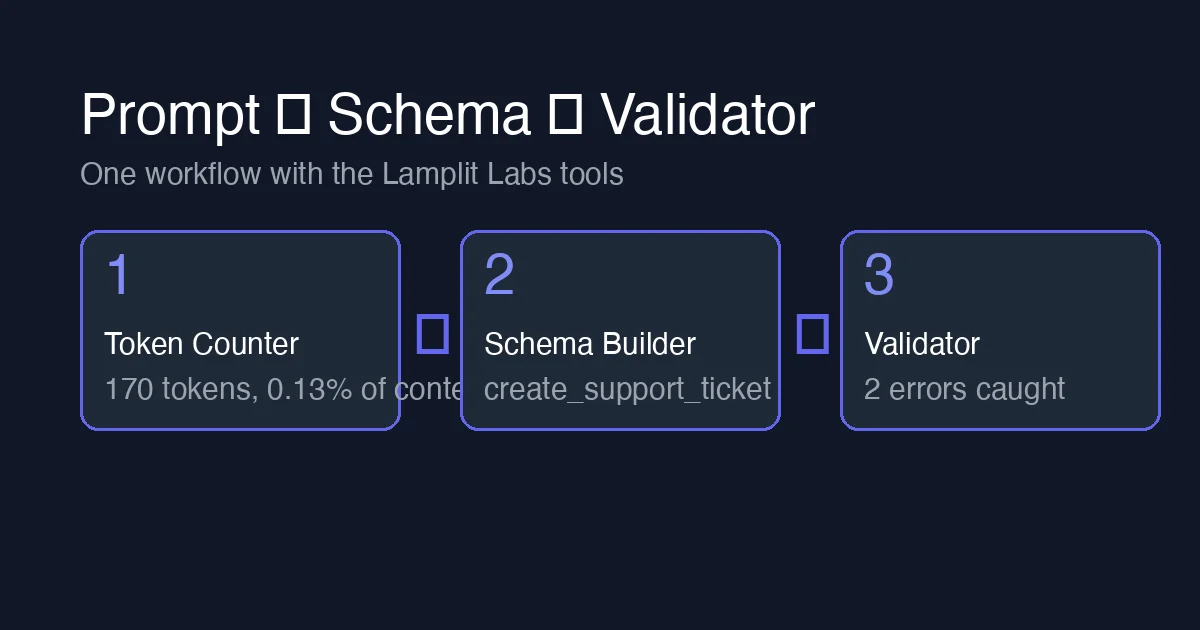
The three tool posts published so far each look at one tool in isolation: the Token Counter for prompt size, the Function Call Schema Builder for tool definitions and the Structured Output Validator for checking what the model sent back. In practice they get used together, in that order, on the same piece of work. This post runs one small task through all three so the sequence is visible end to end. Every screenshot below was taken on tools.lamplitlabs.com with the exact text shown, so the numbers are reproducible.
The task
A support inbox receives free-text messages. A model should read each one and call a create_support_ticket function with a title, the product, a priority and the customer’s email if there is one. The example message used throughout:
Hi, the structured output validator on tools.lamplitlabs.com keeps telling me ‘required’ is missing even though I pasted the schema from your blog post. I’m on Safari 18 on macOS. This blocks our release on Friday. Reach me at dana@example.com.
Three questions have to be answered before this goes anywhere near production: how much of the context window does the instruction take, what exactly does the function schema look like, and does the model’s reply actually match it.
Step 1: size the prompt in the Token Counter
The system prompt is short: the role, the four fields to extract, the message, and three rules about priority and email handling. Pasted into the Token Counter with GPT-4o selected it comes out at 170 estimated tokens, 659 characters, 111 words, 9 lines, 0.13% of the 128,000-token context.
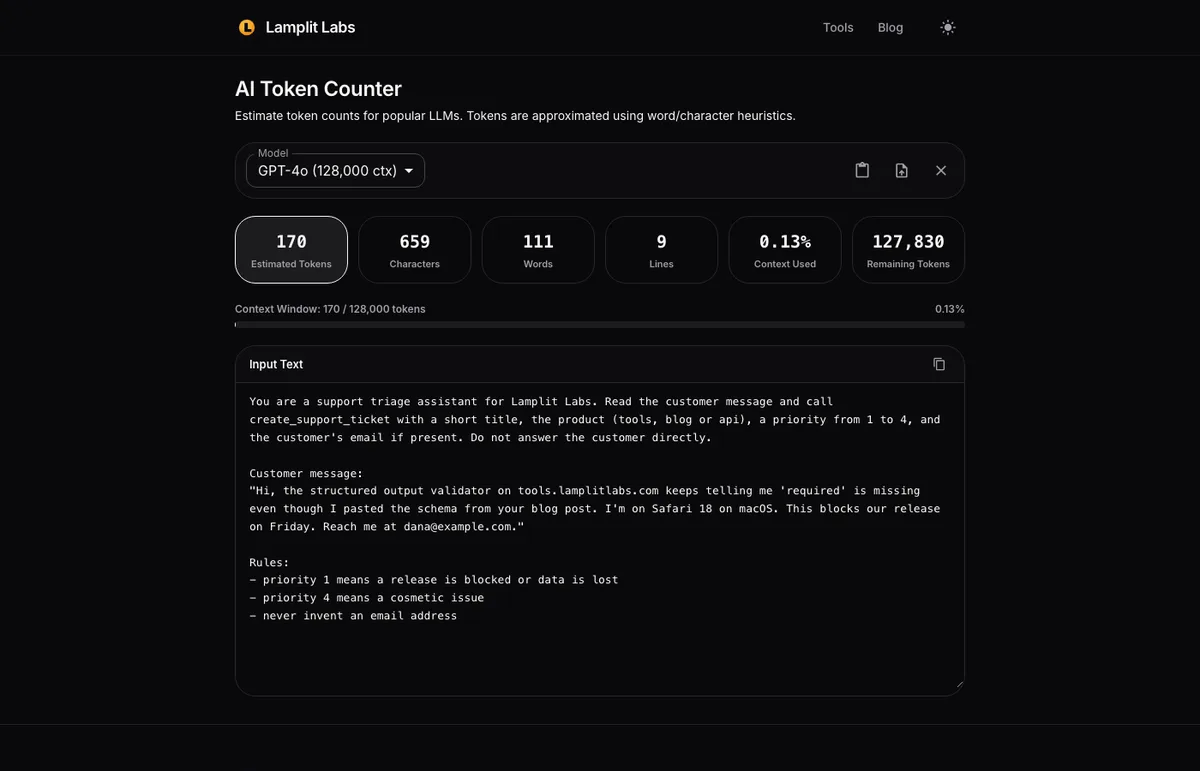
The number itself is not the point at this size; the point is the habit. The instruction block is the part of the prompt that is sent on every call, so it is the part worth counting once. The customer message varies and will be added on top. The Token Counter post explains the heuristic the tool uses and when to switch to the Tiktoken Playground for an exact split; for a 170-token system prompt the estimate is fine.
Step 2: build the function schema in the Schema Builder
Writing the tool definition by hand is where the typos live: a "type": "int" that should be integer, an enum list that does not match the prose in the prompt, a required array that forgets a field. The Function Call Schema Builder takes the function name, a description and a row per parameter, and keeps the generated JSON on the right in sync as you type.
For create_support_ticket the four rows are title (string, required), product (string, enum tools, blog, api, required), priority (integer, required) and customer_email (string, optional). Each parameter’s description is the same sentence that appears in the prompt, so the model sees one definition rather than two slightly different ones.
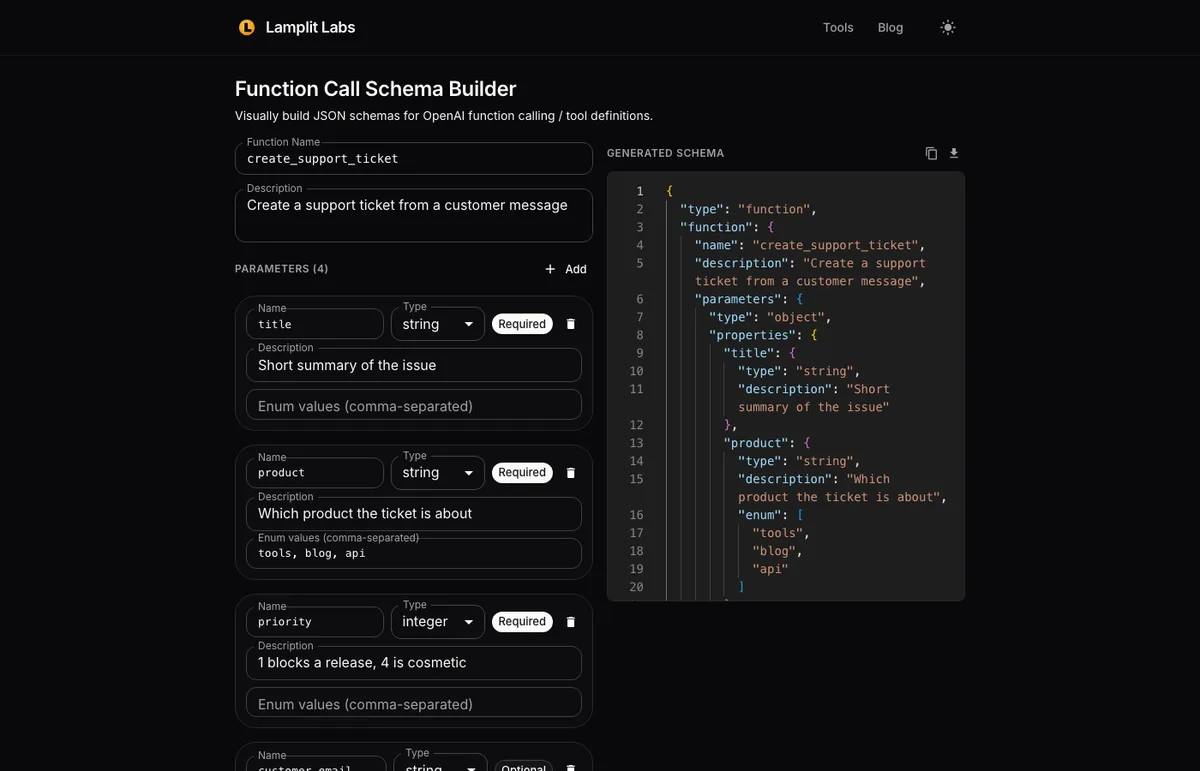
The output is the {"type": "function", "function": {...}} wrapper OpenAI-style APIs expect. The parameters object inside it is plain JSON Schema, which matters for the next step: it can be copied straight into the validator without editing. The Schema Builder post covers the Required toggle, enum handling and the nested-object limits in more detail.
Step 3: check a real reply in the Validator
Now a model has been called with that tool and has returned arguments. Suppose the reply is:
1
2
3
4
5
6
{
  "title": "Structured output validator reports missing 'required' on Safari 18",
  "product": "validator",
  "priority": "1",
  "customer_email": "dana@example.com"
}
It parses. It looks right. It would deserialize into a loosely typed object without complaint. Pasting the parameters schema from step 2 into the left pane of the Structured Output Validator and the reply into the right pane gives a red Invalid - 2 errors banner with keyword chips enum (1) and type (1):
must be equal to one of the allowed valuesat$.product(keywordenum): the model wrotevalidator, a sensible word that is not one oftools,blog,api.must be integerat$.priority(keywordtype): the priority came back as the string"1".
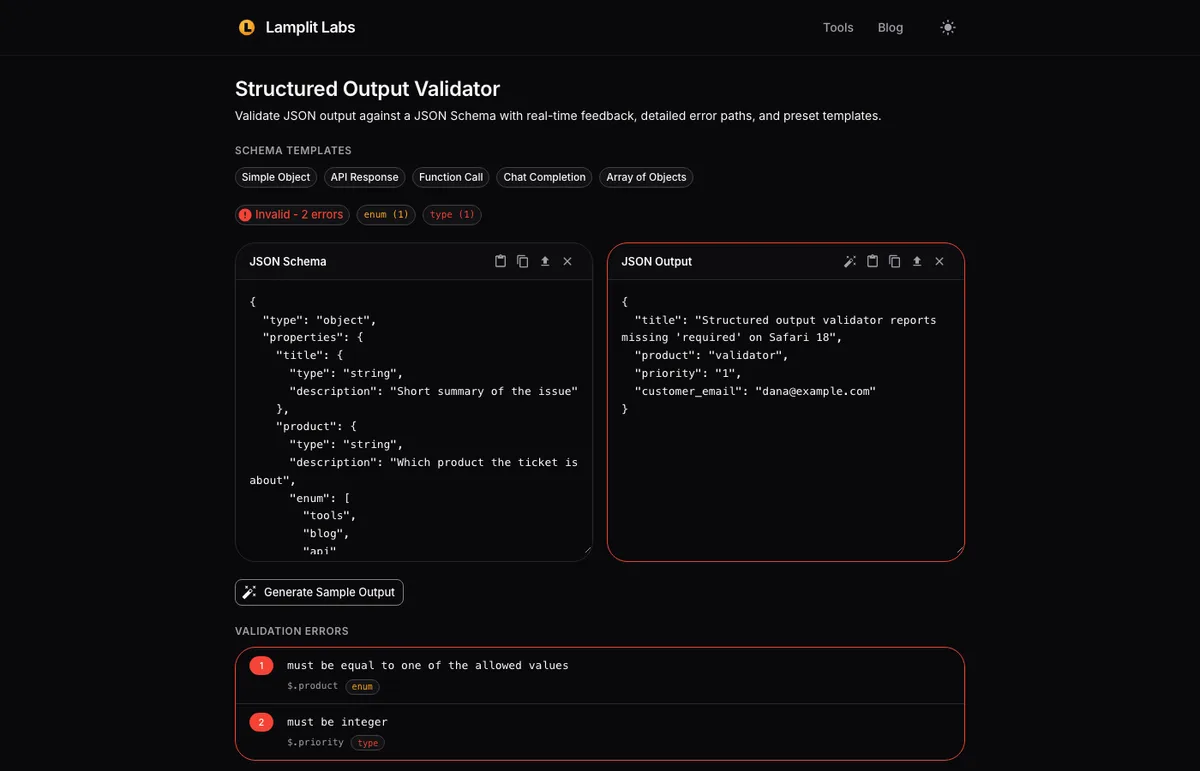
Both are the classic drift patterns from the Validator post: an invented enum value and a stringified number. Both would have reached application code if the only check was “did it parse”.
Closing the loop
The two errors point back at the earlier steps, which is what makes this a loop rather than a line:
- The
productenum failure is a prompt problem as much as a schema problem. The prompt says “the product (tools, blog or api)” in prose; the model still picked the sub-product name. Adding one line, “product must be exactly one of: tools, blog, api”, costs about 15 tokens in step 1 and removes the ambiguity. The better fix on the API side is strict mode orenumenforcement where the provider supports it; the Azure OpenAI structured outputs post covers that. - The
prioritytype failure is cheaper to fix in the schema than in the prompt: in step 2, add a1 to 4hint to the description, or if the provider’s strict mode is on, the integer type alone will be enforced.
After either change, the same three tabs answer the same three questions in under a minute: re-count the prompt, regenerate the schema, re-validate the reply. None of the three tools stores anything or calls a server, so the customer message in the example never leaves the browser.
Where each tool fits in the SDLC
| Stage | Tool | Question it answers | Deeper post |
|---|---|---|---|
| Prompt design | Token Counter | How much of the window does the fixed part take? | Token Counter |
| Tool definition | Function Call Schema Builder | Is the schema what I meant, with no hand-typed JSON mistakes? | Schema Builder |
| Testing and debugging | Structured Output Validator | Did this specific reply match the schema, and if not, where? | Validator |
For a regression suite the validator step belongs in CI with a JSON Schema library in your language; the browser tool is for the moment a single reply looks wrong. The AI SDLC code review workflow post shows where that CI check sits relative to the rest of the pipeline.