Token Counter: Checking Prompt Size and Context-Window Fit Before You Call the Model
How the Lamplit Labs Token Counter estimates tokens, words and context-window usage for GPT-4o, Claude, Gemini and Llama, and when an estimate is enough.
Most LLM bugs that reach production are not about the model being wrong; they are about the prompt being bigger than the engineer thought. A system prompt grows by a paragraph, a retrieval step starts returning twelve chunks instead of eight, and one day the request is truncated or rejected with a context-length error. The Token Counter on the Lamplit Labs tools site exists to answer one narrow question quickly: roughly how many tokens is this text, and how much of the chosen model’s context window does it use? Like the other tools on the site, it runs entirely in the browser; the prompt you paste never leaves your machine, which matters when the prompt contains customer data.
What the tool shows
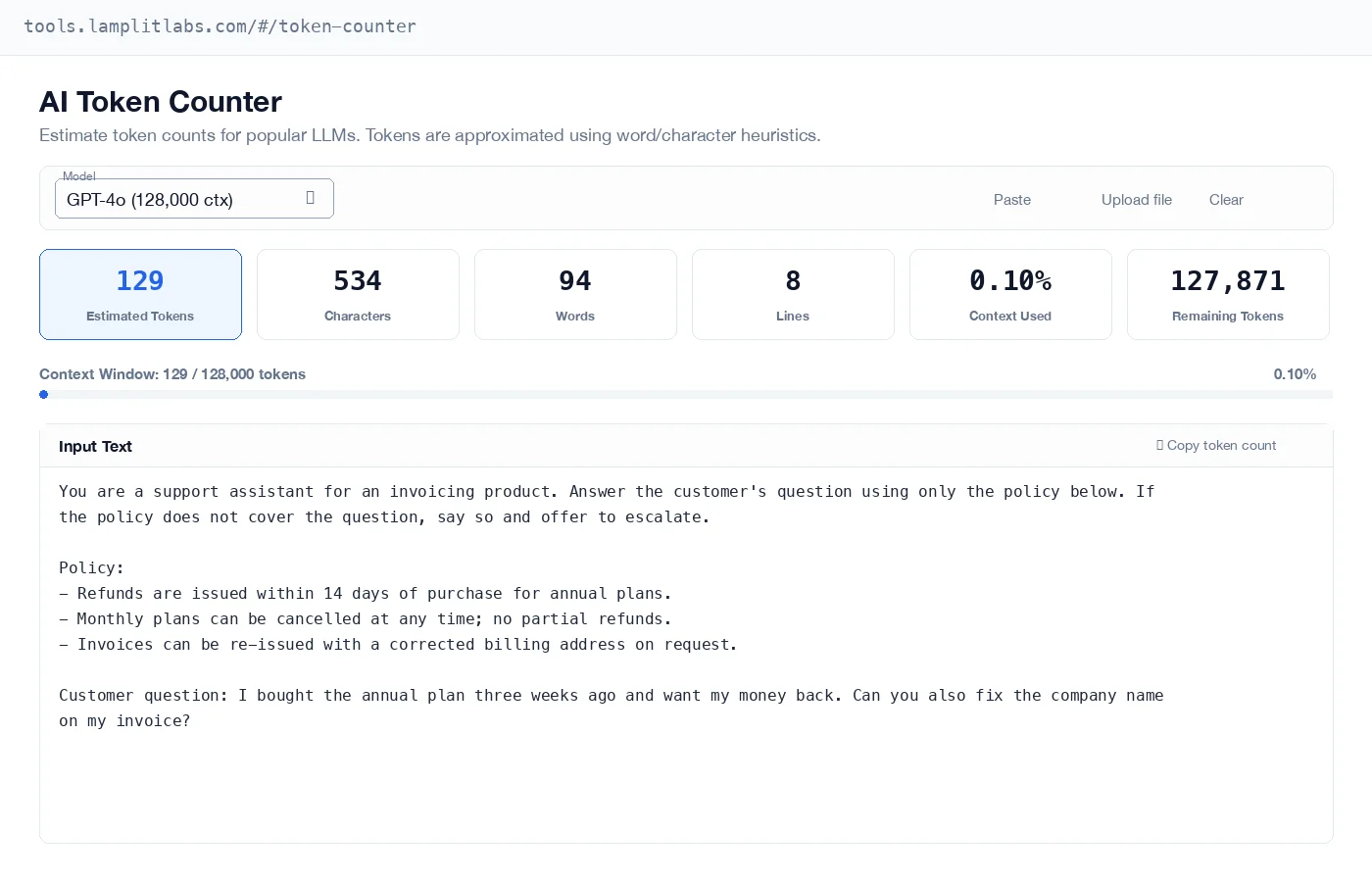
You pick a model from a dropdown, paste or type text into the editor, and six numbers update as you type:
- Estimated Tokens: the headline figure, highlighted.
- Characters, Words and Lines: the raw size of the input, useful for sanity-checking the estimate.
- Context Used: the estimate as a percentage of the selected model’s context window.
- Remaining Tokens: how much room is left for the model’s answer and anything else you add to the request.
Below the counters a progress bar shows the same ratio visually. It stays blue until you pass 70% of the window, turns amber between 70% and 90%, and turns red above 90%. That colour change is the thing most people actually come back for: it makes an “almost full” prompt obvious at a glance.
The dropdown currently lists fifteen models with their context sizes: GPT-4o, GPT-4o Mini and GPT-4 Turbo (128,000 tokens), GPT-4 (8,192), GPT-3.5 Turbo (16,385), Claude 4 Opus, Claude 4 Sonnet, Claude 3.5 Sonnet and Claude 3 Haiku (200,000), Gemini 2.5 Pro and Gemini 2.0 Flash (1,000,000), Llama 3.1 405B and 70B (131,072), Mistral Large (128,000) and DeepSeek V3 (131,072). Switching models re-runs the estimate immediately, so comparing “does this fit in GPT-4?” against “does this fit in Claude?” is two clicks.
A worked example
Take a short support-assistant prompt: a one-paragraph instruction, a three-line refund policy and a customer question. That is 534 characters, 94 words and 8 lines. With GPT-4o selected, the tool estimates 129 tokens, which is 0.10% of the 128,000-token window, leaving 127,871 tokens.
Switch the dropdown to GPT-4 and the same 129 tokens become 1.57% of an 8,192-token window. That is still comfortable, but the exercise shows why the percentage matters more than the raw count: a prompt that is negligible on one model can be a meaningful slice of another, and the retrieval chunks you append later scale that slice up fast.
How the estimate works, and how far to trust it
The counter does not download a tokenizer. It uses a word-and-character heuristic: each word of four characters or fewer counts as one token, words of five to eight characters count as 1.3, longer words are charged per character at a model-specific rate (0.24 for the Claude family, 0.25 for GPT and Gemini, 0.26 for Mistral and DeepSeek, 0.27 for Llama), and every punctuation mark or non-ASCII run is charged by its UTF-8 byte length. The result is rounded to a whole number.
That design is a deliberate trade: the page loads instantly, works offline and never ships your text anywhere, in exchange for an estimate rather than an exact count. In practice it is close enough for English prose and typical code, and it tends to over-count rather than under-count on text with lots of short words, which is the safe direction when you are checking headroom. It is not the right tool for billing reconciliation or for deciding whether a prompt is 100 tokens under a hard limit; for that, use the provider’s tokenizer in your pipeline. Use this tool for the earlier, cheaper decision: is the prompt in the right order of magnitude, and does it leave enough room for the answer?
Three ways we use it
- Prompt reviews. Paste the full assembled prompt, including few-shot examples and retrieved context, and read the percentage. Anything above the amber threshold gets trimmed before it goes near a deployment.
- Choosing a model for a document task. Upload a file with the upload button (plain text works best), then step through the dropdown to see which context windows actually fit the document plus room for a reply. The remaining-tokens figure is the one to watch, since output has to fit too.
- Feeding the pricing calculator. The token count from here is the “input tokens per request” field in the AI Pricing Calculator. The copy button in the editor header copies just the token count, so moving between the two tools is paste, read, copy, paste.
Small details worth knowing
- The Paste button reads straight from the clipboard, so you do not have to click into the editor first.
- Uploading a file shows a chip with the file name so you can tell which document the numbers describe; editing the text clears the chip.
- The Clear button is disabled when the editor is empty, which sounds trivial but prevents the “did it clear or not” double-click.
- Everything is computed on keystroke, so you can delete a paragraph and watch the bar shrink to find out which part of the prompt is actually expensive.
If a feature you expect is missing, such as an exact tokenizer for a specific provider, tell us and we will consider it. The tools site is small on purpose, and each tool is meant to do one job well.